Setup Microsoft Foundry
In this section, you will set up the Microsoft Foundry resource and deploy your first model.
TIP
You do not need to deploy Microsoft Foundry. This is already done for you in your Spektra environment.
Steps
Log in to Azure
- Sign in to the Azure Portal.
Create an Microsoft Foundry Resource
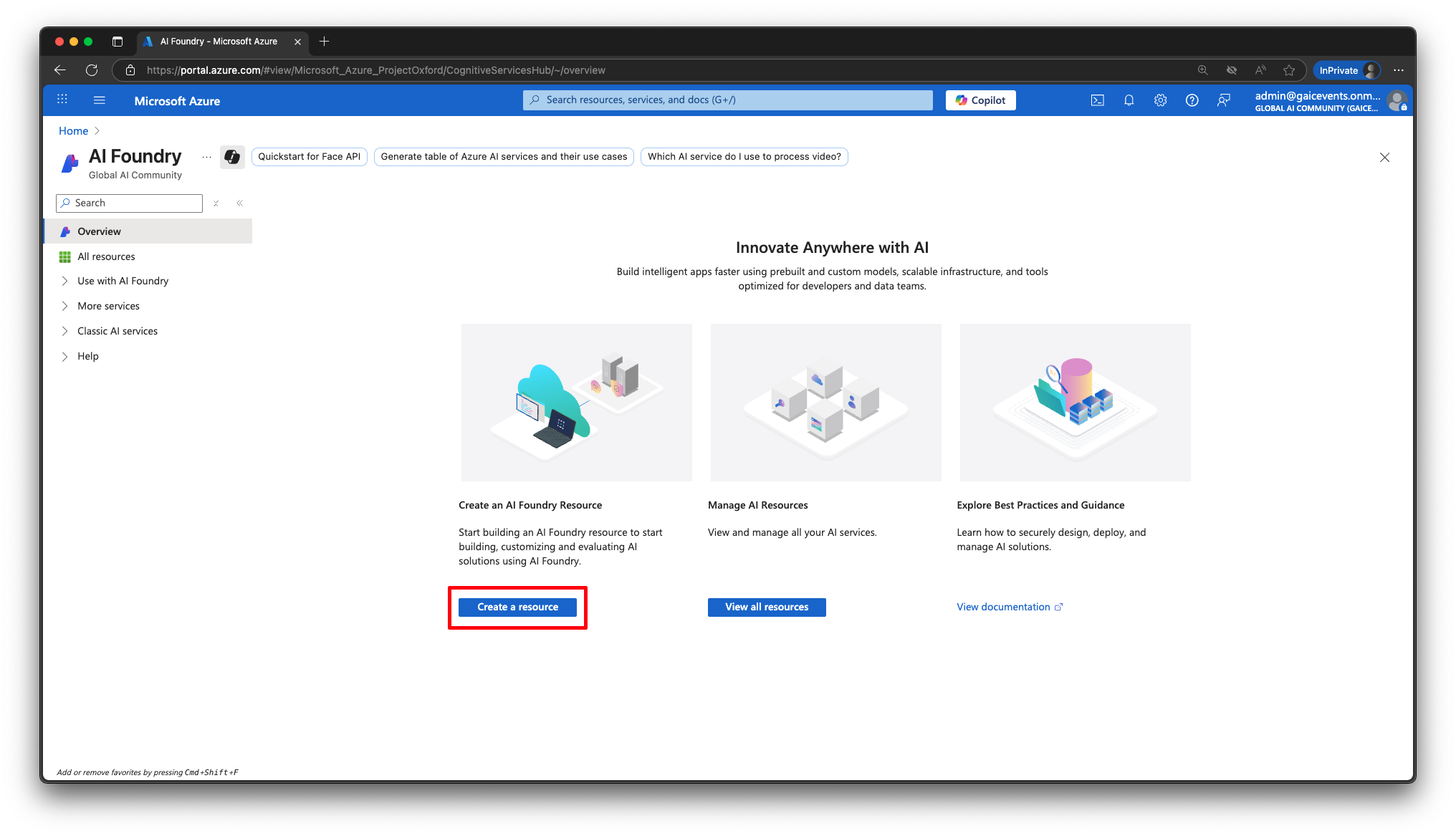
- Navigate to the Microsoft Foundry service.
- Click Create a resource.
Enter the resource details
Fill in the form with the following values, then click Next:Field Value Subscription: Select the subscription provided for this workshop Resource group: Click Create newand give your resource group a descriptive name, e.g.pizza_workshop-RGName: Enter a unique name, e.g. pizza-foundry-resource-7yudRegion: Select West US (⚠️ Do not select another region) Project Name: Pizza-Workshop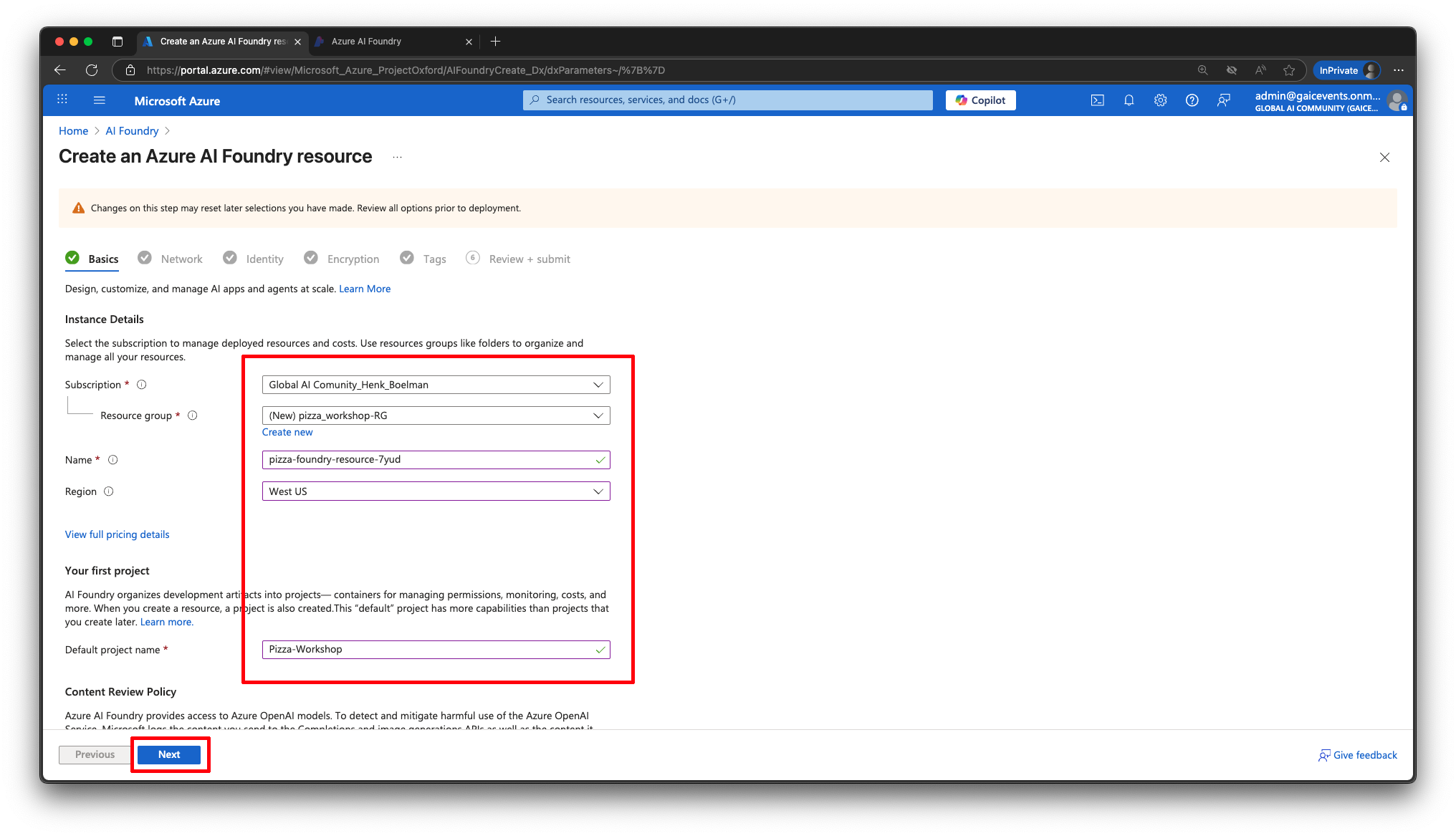
Deploy the resource
- Click Next through the remaining steps until you reach Review + Create.
- Click Create to deploy the resource.
- Wait 1–5 minutes for the resource to finish deploying.
Open Microsoft Foundry
- Navigate to AI.Azure.com.
- You should now see the Microsoft Foundry projects linked to your subscription.
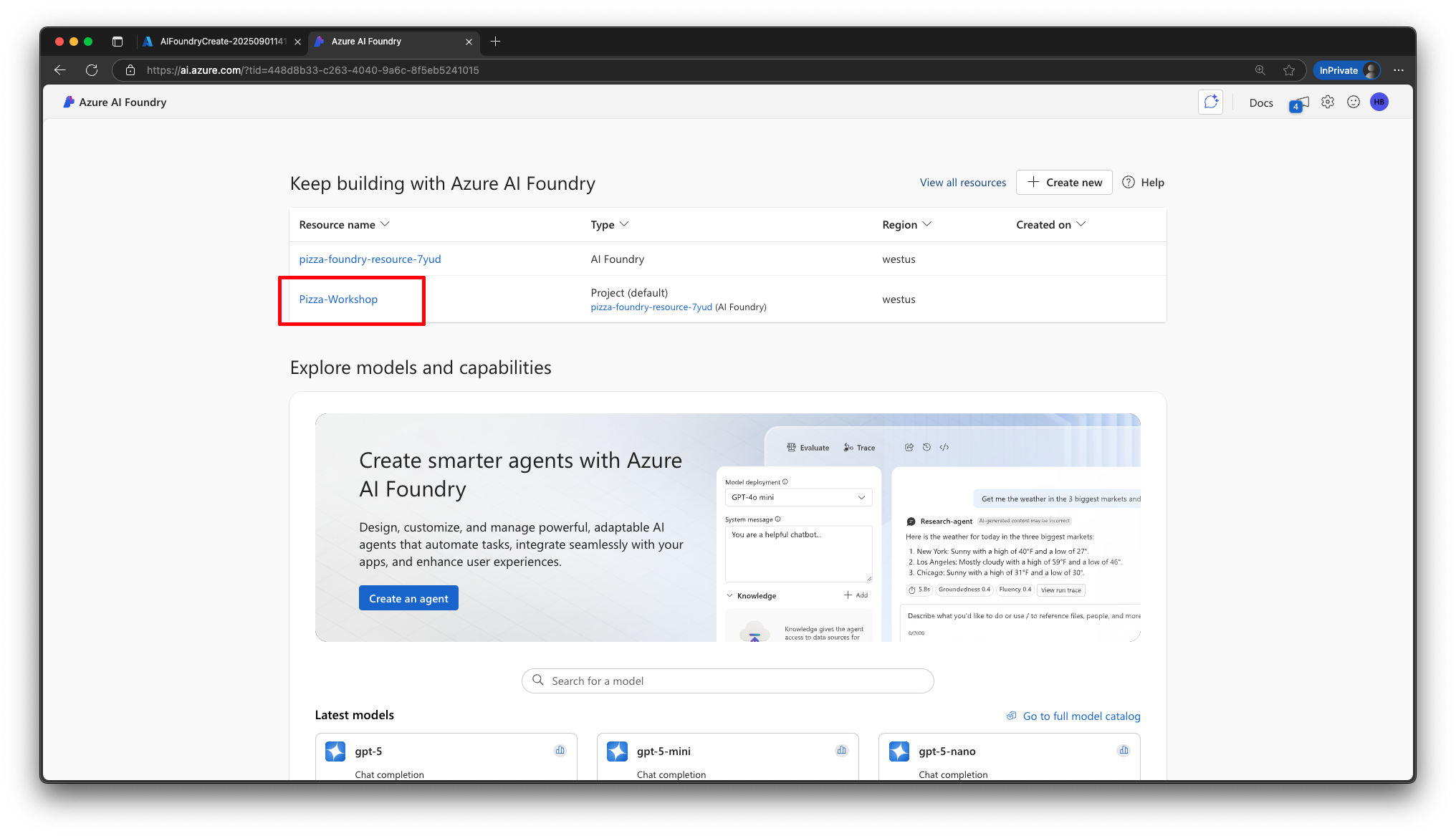
- Click on your project, e.g. Pizza-Workshop.
Deploy a base model
- In the project, go to Model + endpoints.
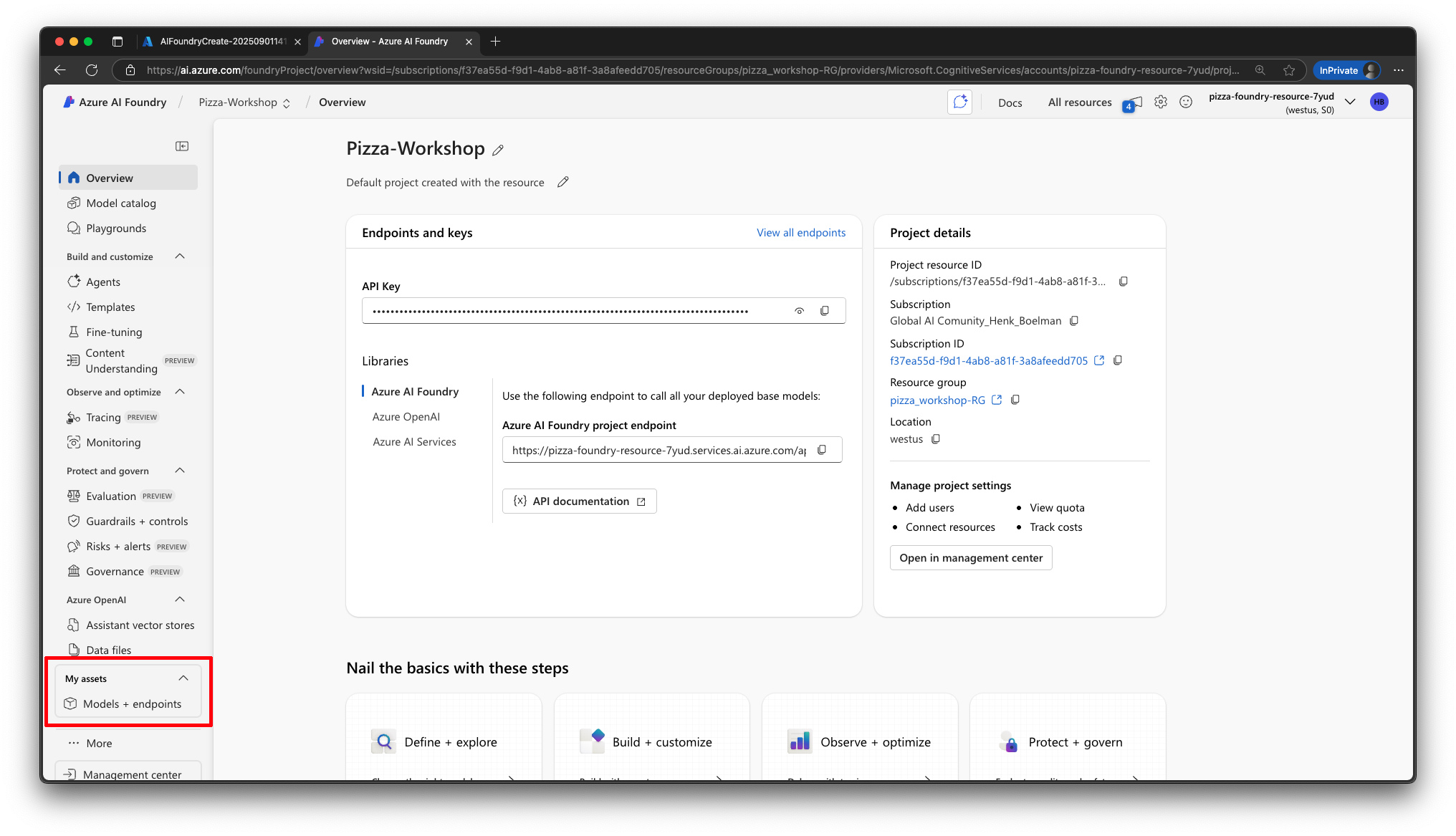
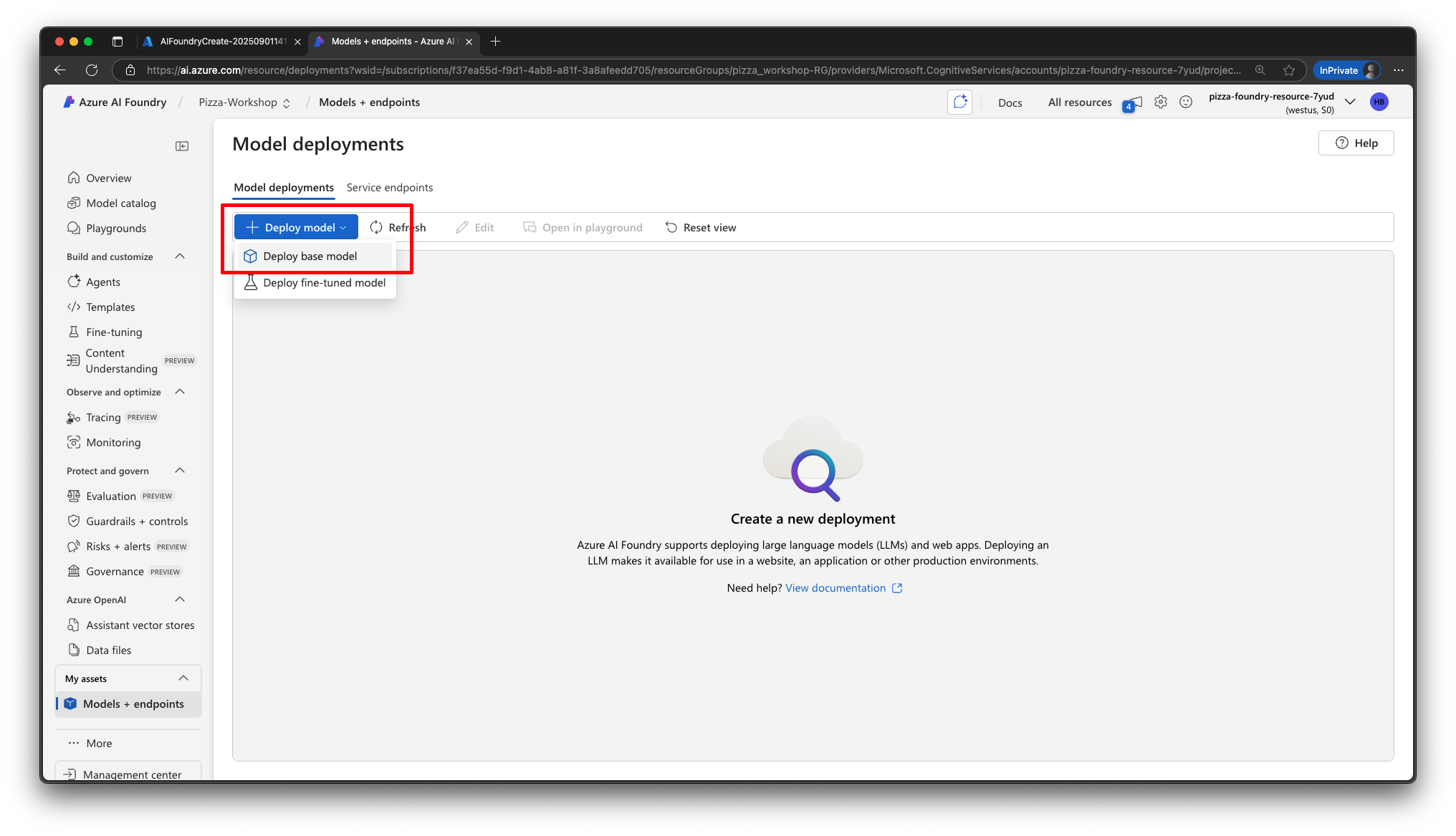
- Click Deploy model → Deploy base model.
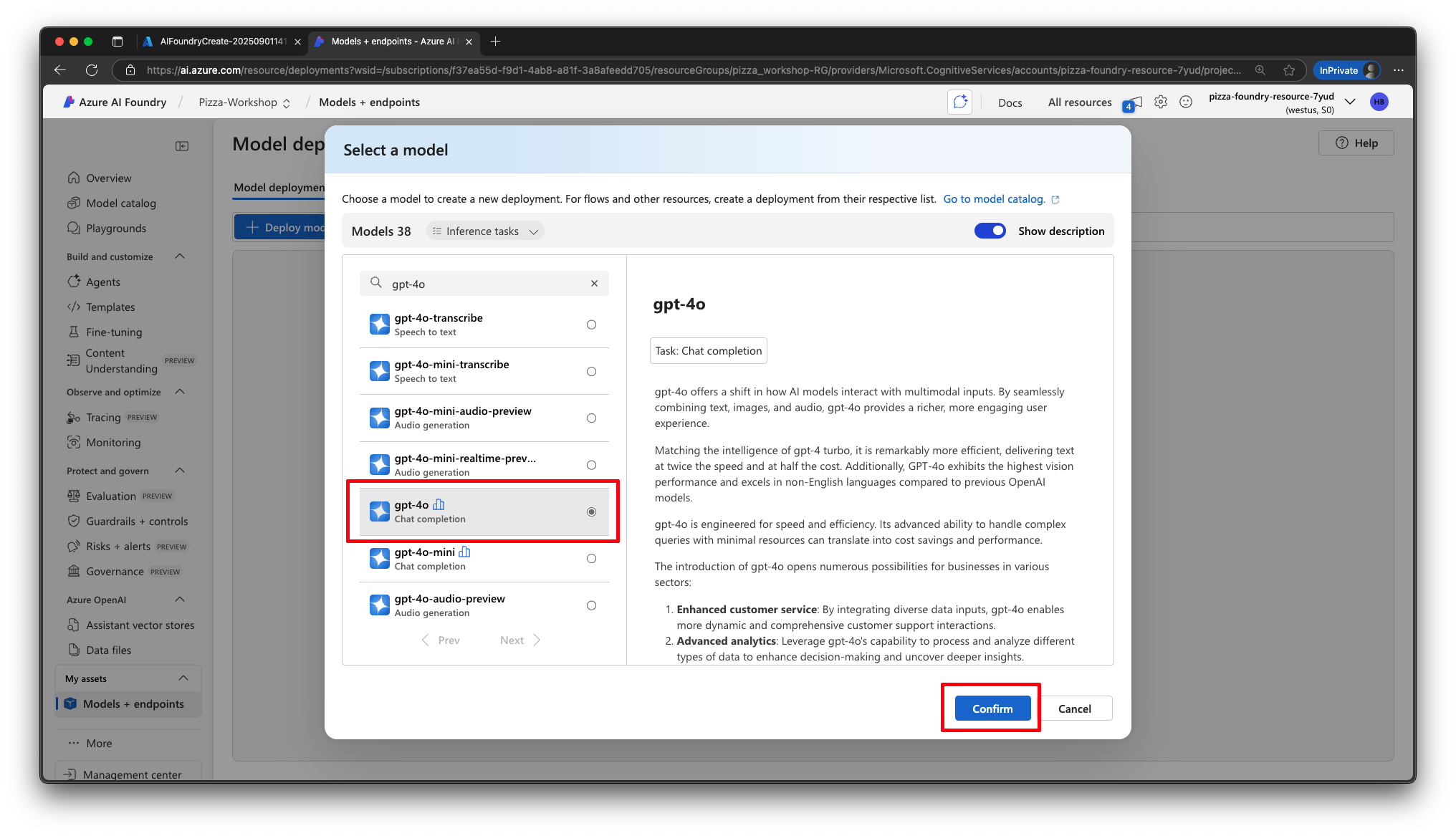
- Select the model gpt-4o and click Confirm.
- Leave all other settings at their defaults and click Deploy.
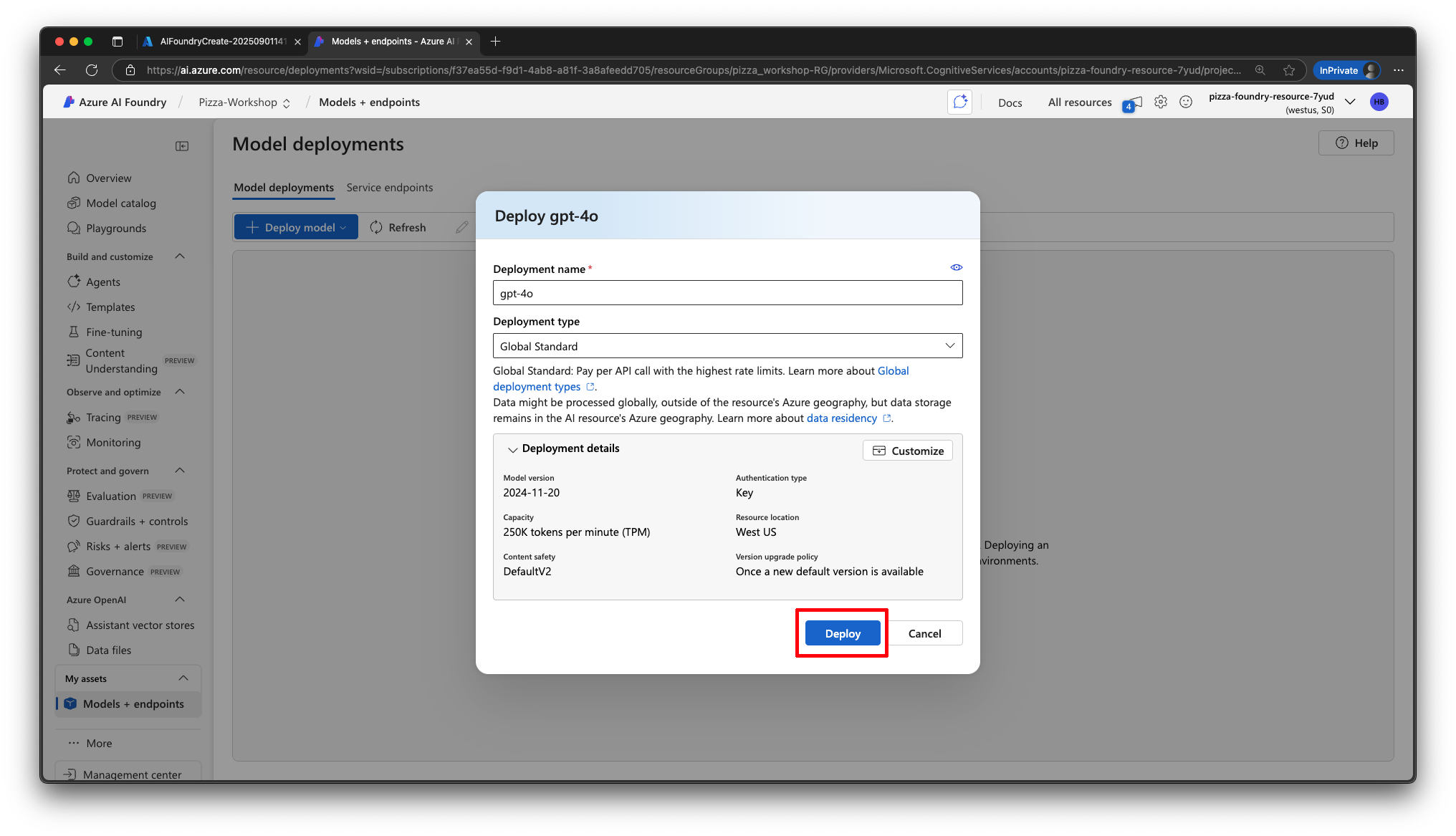
This will make the model available in your project for use by your agents.
- In the project, go to Model + endpoints.
Test the model
Once deployment is complete, click Open in Playground.
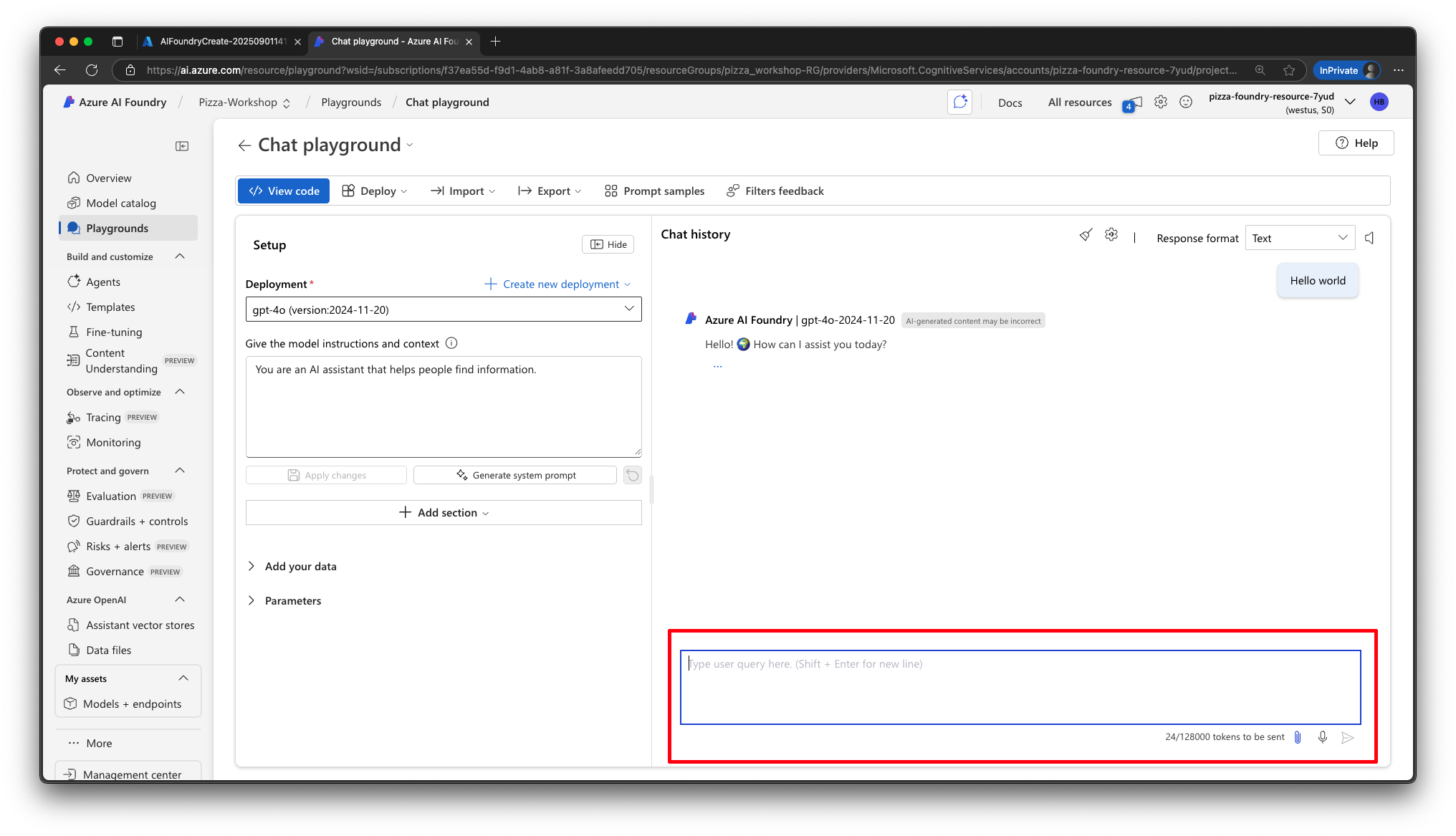
In the chat window, type:
Hello worldYou should see a response from the gpt-4o model. 🎉
Recap
In this setup section, you have:
- Logged into the Azure Portal
- Created an Microsoft Foundry resource
- Deployed a GPT-4o base model into your project
- Tested the model in the Playground
Your Azure environment is now ready for building the PizzaBot agent in the next chapters.